Login to the AWS Lab Account
Login to your AWS Account
When creating a resource in AWS, use your initials as a prefix to any name. This will help you identify the resource quicker and there is a potential that you may share an AWS account with another attendee, so you will not conflict with their resource names.
Using the AWS Event Engine
-
Click on the URL that was provided to you through email. If you did not get an email, but have a code, go to the following URL to access Event Engine: https://dashboard.eventengine.run/
-
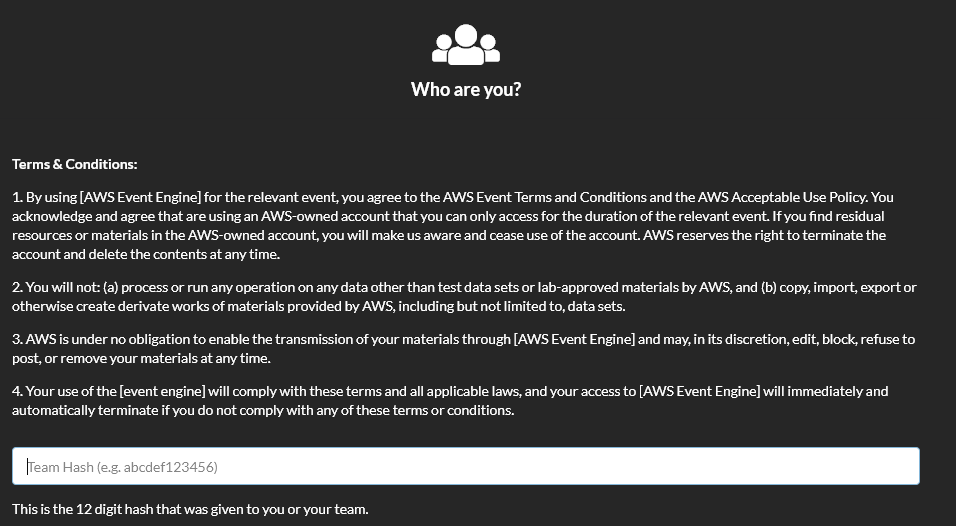
Enter the 12 character hash code that was given to you by the instructor, and then click Accept Terms and Login:

-
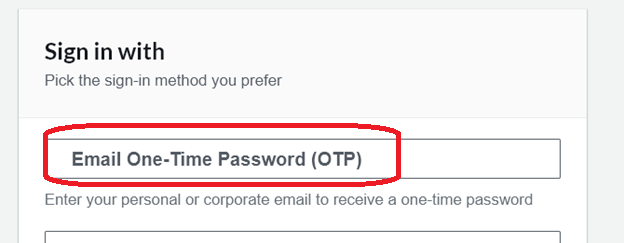
On the next screen, choose Email One-Time Password (OTP).
-
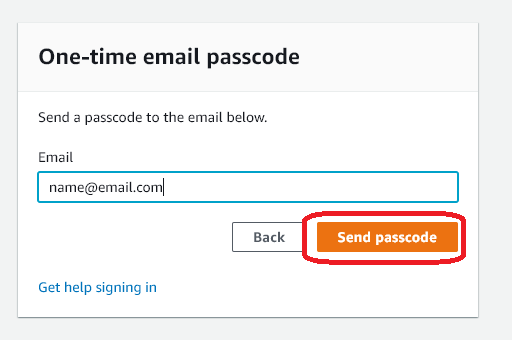
Next, enter your email address and click Send Passcode. This should be the email that you registered with!
-
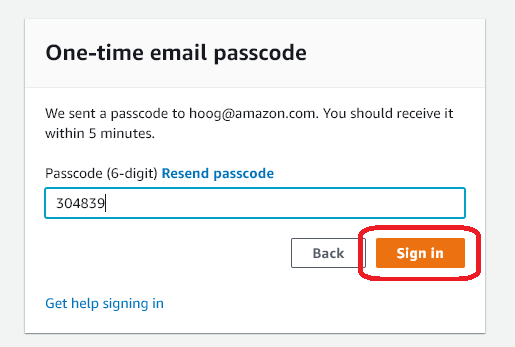
Check your email for a One-Time Passcode. Enter it in the Passcode box and click Sign in.
-
On the Team Console page, click AWS Console

-
Click the Open AWS Console button:

-
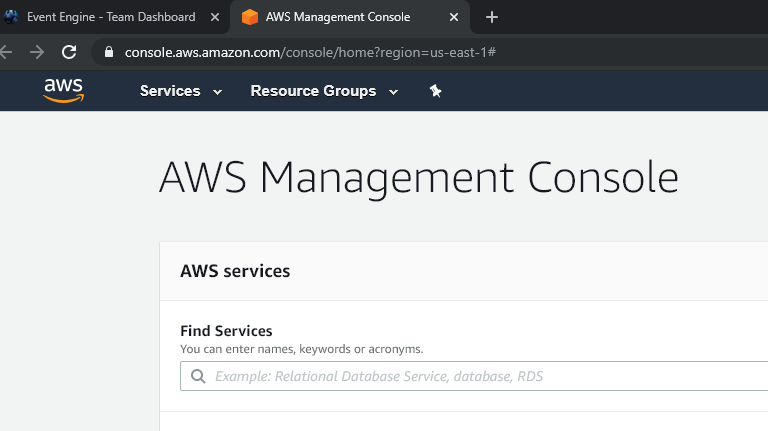
You will now be logged in to your AWS account and can proceed to the next step:
The AWS Account that is being provided through the AWS Event Engine is provided for the duration of the workshop only.